
Liber Mail Pro
Liber Mail Pro is a modern email client designed to eliminate email clutter. With its blacklist, bulk delete and clean interface, it keeps your inbox tidy, organized and manageable.
Project Details
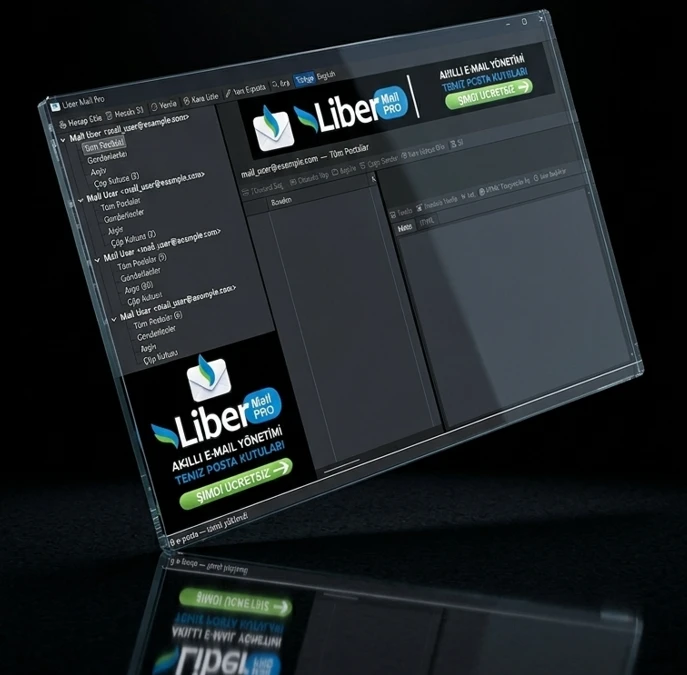
Liber Mail Pro is a modern desktop email application for Windows, built to help you manage your email faster, cleaner and more securely. It brings all of your accounts into a single window and keeps your inbox free of ads, newsletters and unwanted senders.
It automatically recognizes well-known providers such as Gmail, Outlook / Hotmail, Yahoo, iCloud, Yandex and Zoho; corporate and custom-domain (IMAP) accounts are added manually with a few details. After installation, typing your email address is usually enough — the server settings fill in on their own.
Key Features
- Multiple accounts, one inbox: Manage all of your accounts from different providers at the same time and run a unified search across them.
- Blacklist: Block an unwanted sender with a single click; every email from that address is automatically moved to the trash from then on. Undo a mistaken entry with “Not spam”.
- Bulk actions: Select hundreds of emails and delete, trash, archive or blacklist their senders in one move.
- Folders: Inbox, Sent, Archive, Trash and an all-mail view; switch to any folder you like.
- Compose, Reply, Reply All, Forward: Write in plain text or HTML, preview, and attach files.
- Rich reading view: HTML emails are rendered safely inside the app (scripts in the email are not executed); switch to plain text or open in your browser whenever you want.
- Attachments: Save attachments to your computer one by one or all at once.
- Advanced search: By sender, subject and folder; within a specific account or across all accounts at once.
- Auto-refresh and notifications: Choose a check interval between 5 and 60 minutes for each account; get a system tray notification when new mail arrives, and minimize the app to the tray.
- Offline access: Downloaded emails are cached on your computer, so you can read them even without an internet connection.
- Dark theme and Turkish / English interface.
Supported Account Types
- Gmail / Google Workspace: With an app password (see the FAQ below).
- Microsoft — Outlook.com, Hotmail, Live, Office 365: Using Microsoft’s browser-based sign-in (OAuth); you never enter a password into the app.
- Other providers: Yahoo, iCloud, Yandex, Zoho, GMX, Fastmail, Mail.ru and many more are recognized automatically.
- Corporate / your own domain: With IMAP and SMTP server details.
Privacy and Security
- Your account details and passwords are stored only on your own computer, encrypted with Windows DPAPI (tied to that user and machine). No other user or computer can decrypt the file.
- Your email is fetched and sent directly through your provider’s server (IMAP/SMTP); it is never copied or forwarded to Liber servers.
- For Microsoft accounts, sign-in happens in the browser; the app never sees your Microsoft password and only keeps a refreshable access token (also encrypted).
System Requirements
- Windows 10 or Windows 11 (64-bit)
- No administrator rights required for installation — the app installs into your user account
- An internet connection
Frequently Asked Questions
How do I add my Gmail account to the app?
Gmail does not allow a connection with your standard account password; instead, an App Password issued by Google is used. Steps:
- In the app, choose Add Account → select “Password / app password” as the method.
- Enter your Gmail address in the email field; the IMAP settings (imap.gmail.com, 993, SSL) fill in automatically.
- In the password field, enter the app password — not your normal Gmail password.
- Verify with Test Connection and click Save.
How to get an app password
- 2-Step Verification (two-factor authentication) must be enabled on your Google Account. If it is off, turn it on first from Google Account → Security.
- Then, under Security, open the App passwords page (if it is not visible, type “App passwords” in the search box, or go to myaccount.google.com/apppasswords).
- Give it a name (e.g. “Liber Mail Pro”) and click Create.
- Google shows you a 16-character password. Paste this password (spaces do not matter) into the password field in Liber Mail Pro. It is shown only once and cannot be viewed again, but you can create a new one whenever you need.
The same method applies to Yahoo, iCloud and other providers that have two-factor authentication enabled.
How do I add my Outlook / Hotmail / Office 365 account to the app?
Microsoft accounts are added through Microsoft’s own secure sign-in window; you do not type a password into the app.
- In the app, choose Add Account → select “Microsoft (OAuth2)” as the method.
- Click the Sign in with Microsoft button; your computer’s default browser opens.
- Sign in with your Microsoft account in the browser and approve Liber Mail Pro’s permission to access your email (IMAP) and to send (SMTP).
- After approval, the browser automatically returns you to the app and the account is added.
The app never sees or stores your Microsoft password; it only keeps an encrypted access token that renews itself when it expires. Both personal Microsoft accounts and corporate (work/school) accounts are supported.
How do I add a corporate or custom-domain email address?
Accounts on your own domain (e.g. [email protected]) are added with IMAP server details and the mailbox password.
- In the app, choose Add Account → select “Password / app password”.
- Enter your email address. If the provider is not recognized, Advanced settings opens automatically.
- Enter the following details (your hosting company or IT department provides them):
- IMAP server and port (usually 993, SSL on)
- SMTP server and port (usually 587 or 465)
- Username (on most servers, your full email address)
- Password (the mailbox password)
- Test with Test Connection and click Save.
Why can’t I sign in with my normal Gmail password?
For security reasons, Google has disabled direct connections from email apps using the account password. That is why you must always create an app password for Gmail (see above).
I can’t see the “App passwords” option in my Google account.
This option appears only when 2-Step Verification is enabled. Once you turn on two-factor authentication from Google Account → Security, the page becomes accessible. On some Google Workspace accounts, an administrator may need to enable this feature.
Can I add more than one account?
Yes. You can add as many Gmail, Microsoft and corporate accounts together as you like and search all of them at the same time. You set each account’s refresh interval separately.
Do new emails arrive automatically?
Yes. You choose a check interval between 5 and 60 minutes for each account; you can also turn off auto-refresh entirely. You get a system tray notification when new mail arrives.
Can I read my emails when there is no internet?
Downloaded emails are cached on your computer, so they can be read while offline. An internet connection is needed to receive and send new email.
Do I need administrator (admin) rights to install it?
No. Liber Mail Pro installs only into your own user account; no administrator password is requested. When needed, the Microsoft Edge WebView2 component is installed silently in the background.